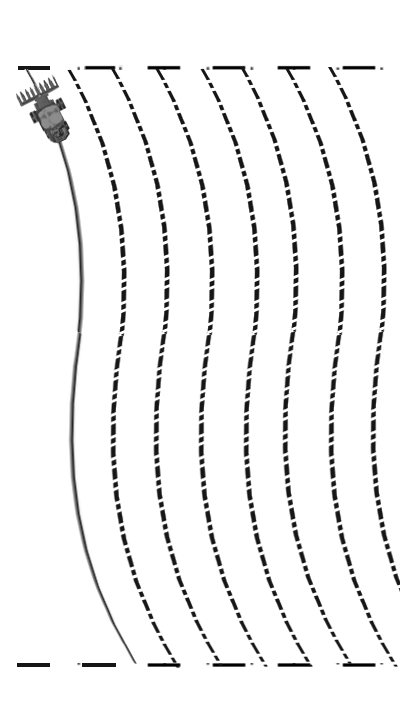
AB CurvesThe use of AB Curves is recommended when there is a continuous curve throughout the field. This allows for row entry on adjacent paths. Performance will be improved if the field is planted with AutoTrac. AB Curves will also have improved performance through periods of row dropout. AB Curves have the advantage of projecting a curved track all the way across a field as parallel lines, but the shape of the curve is the same on each pass. When in AB Curves, the GPS curve will be automatically re-centered. This ensures the GPS path is properly aligned with the corn rows. This feature is not available in adaptive curves. |
|
OUO6050,0000F3A -19-03APR08-1/3 |
|
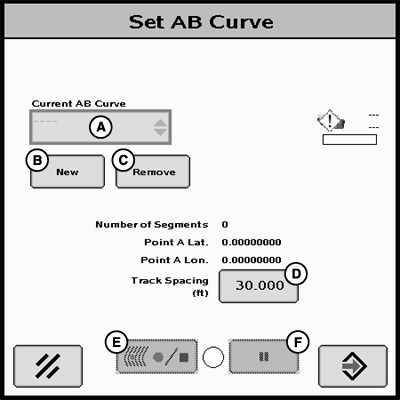
MENU >> GREENSTAR2 PRO softkey >> GUIDANCE softkey >> GUIDANCE SETTINGS tab NOTE: Please pause recording when not harvesting. 1. Select AB CURVES from the TRACKING MODE drop-down menu. Select the VIEW tab.2. Ensure an SF1, SF2, or RTK signal is present by viewing the receiver icon on the VIEW tab. 3. Select the AB CURVES button. 4. Verify the track spacing is correct. If track spacing is not correct, change the track spacing under the GUIDANCE tab. |
|



OUO6050,0000F3A -19-03APR08-2/3 |
|
5.
Select an AB Curve name from the CURRENT AB CURVE drop-down menu. If no name exists, create a new one by selecting the NEW button.
6. Select the record button at the beginning of the first pass. 7. Select the accept button at the end of the first pass. Curves will be projected across the field. 8. Press the resume switch to run AutoTrac RowSense.
|
|
OUO6050,0000F3A -19-03APR08-3/3 |